FreePartition
 FreePartition
Free, open-source disk management for Windows. No ads.
Recover deleted files and manage your partitions, all in one app.
- File recovery: scan NTFS volumes for deleted files, or carve JPEG, PNG, PDF, DOCX, MP4 and more by signature on FAT, exFAT and damaged NTFS. Preview what you found, browse every photo as a thumbnail gallery, check the ones you want and recover them to another drive, never the one you are scanning.
- Partitions: create, resize, move, merge, split and format partitions with a visual disk map and a review-then-apply queue, so nothing touches your disk until you confirm.
- Disk health: read-only S.M.A.R.T. and NVMe health reports.
- Clone Windows: from the bootable WinPE build, copy an installed Windows to another disk in one guided window, boot files and recovery partition included.
- Built with C# / .NET and WPF.




Download
- Open the latest release and download one of the zips:
FreePartition-<version>-win-x64-self-contained.zip: runs without installing anything (recommended).FreePartition-<version>-win-x64.zip: smaller, needs the .NET Desktop Runtime 10.
- Extract it and run
FreePartition.exe. Accept the administrator prompt: raw disk access needs it.
Requires Windows 10 / 11 (64-bit). To copy Windows to another disk you also need a USB drive: see Clone Windows to another disk.
- SmartScreen: the builds are not code-signed yet, so Windows may warn on the first run. Click More info and then Run anyway.
- Check your download (optional): run
Get-FileHash <file>.zip -Algorithm SHA256in PowerShell and compare the result withSHA256SUMS.txt, attached to the same release. - Updates: at startup FreePartition checks GitHub for a newer release and offers it. Update now downloads the
same kind of zip you use, checks it against
SHA256SUMS.txtand restarts the app. It never updates while operations are running or queued. Turn the startup check off, or check by hand, in the Help menu.
Table of contents
- Download
- File recovery
- What it does
- Clone Windows to another disk (with a step-by-step guide)
- Screenshots
- How to try it safely (test VHD)
- How recovery works
- Safety
- Known limitations
- Build from source
- Contributing
- License
File recovery
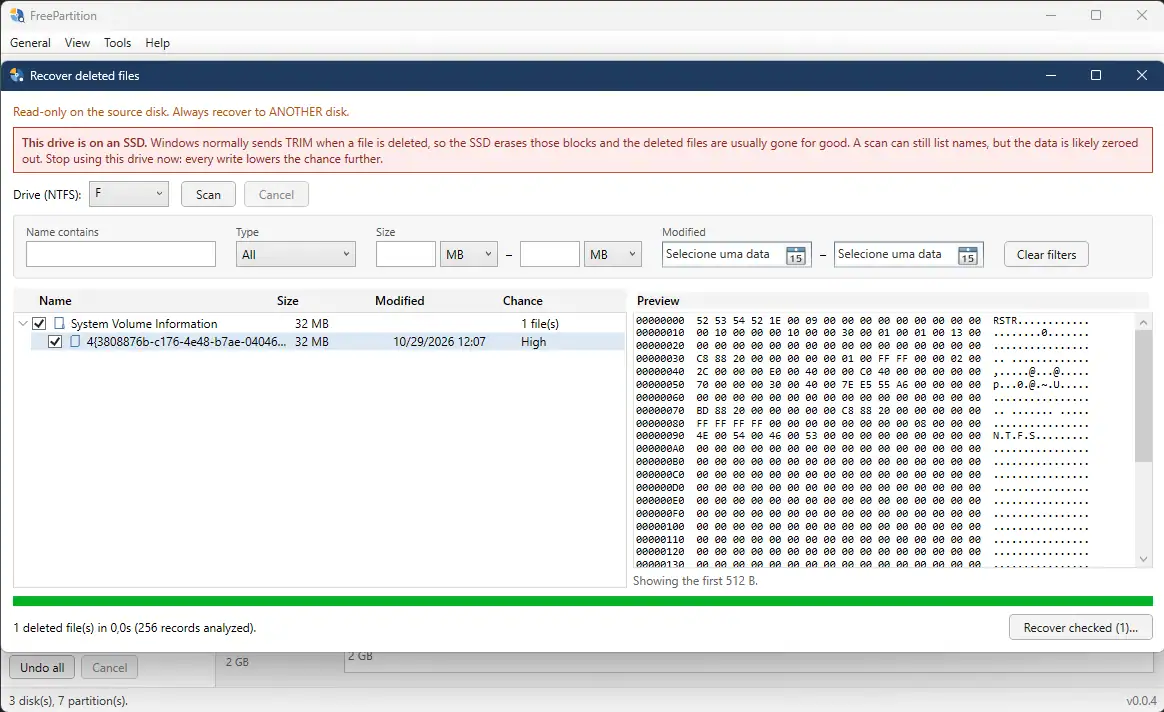
Tools → Recover deleted files is the main feature of FreePartition. Pick a drive, or a partition without a drive letter (listed as “Disk 2, partition 5 …”), and scan it; the source is only ever read, and files are always recovered to another drive.
| Step | What you get |
|---|---|
| 1. Scan | NTFS: reads the MFT and lists deleted files with their original names and folders, plus a recovery chance for each. FAT / exFAT / damaged NTFS: carves files by signature, searching the whole drive for known formats (JPEG, PNG, GIF, BMP, WebP, PSD, PDF, DOCX/XLSX/PPTX, ZIP, 7z, MP4/MOV/HEIC, WAV, AVI, SQLite, EXE/DLL). You can also force carving on NTFS. |
| 2. Filter | By name, type (pictures, documents, audio, video, archives), size and modified date. |
| 3. Preview | Select any file, carved or not, to see it before recovering: the image, the text, or a hex dump. Nothing is written anywhere. |
| 4. Thumbnails | Thumbnails… opens a window with every image in the list (respecting the filters) as a thumbnail, so you do not have to click them one by one. Click a thumbnail to check it, drag across several to check or uncheck them all, or Shift+click to take a whole range. Programs (EXE, DLL, SCR, OCX, CPL) show their own application icon, read from the file’s resources in memory. A slider changes the thumbnail size. |
| 5. Recover | Check the files and recover them to a folder on another drive. NTFS files keep their original folders; carved files are grouped by type. |
Carving is the way to get photos and documents back from a formatted memory card or USB stick, where no file names survive: scan, open Thumbnails…, check the pictures you recognize and recover them. See How recovery works for the details and limits.
What it does
Everything in the Operations panel (and the right-click menu, which mirrors it) and the Tools menu is listed below. Nothing that changes a disk runs until you click Apply.
Overview
| Area | Feature |
|---|---|
| Disks and partitions | Lists disks, partitions and volumes through WMI, grouped by disk with a graphical map. Tells SSDs from HDDs, flags partitions that are not aligned to 4 KB and draws the hidden Microsoft Reserved (MSR) partition as Reserved (MSR) instead of unallocated space. |
Operations
Inspect (read-only)
| Operation | What it does |
|---|---|
| Explore partition | Opens the selected partition in Windows Explorer. |
| Properties | Usage bar (used/free, and on a drive with Windows the estimated share of the operating system, programs and users) plus partition, NTFS volume and disk details. |
| Verify wipe | Reads a whole volume (also a RAW one) and checks that nothing is left after a wipe: counts the bytes that are not zero, shows where the first one is with a hex dump and names any NTFS / exFAT / FAT32 signature that survived. Verdict: all zeros, random-looking, residual data or inconclusive. |
| Cluster map | Draws a whole volume (also a RAW one) as a grid. Each square is classified as zero, data or unreadable from three 4 KB samples; clicking a square shows its byte range, its NTFS clusters and a hex dump. |
| Recover files | Looks for deleted files on the selected NTFS drive, or carves files by signature on FAT/exFAT and damaged NTFS, with preview and a thumbnail gallery (see File recovery). Also works on partitions without a drive letter. |
| Recover partitions | Looks in the unallocated space of the selected disk for NTFS, FAT32 and exFAT partitions missing from the partition table (read-only) and queues the ones you check to be put back. Only the table is written, never the files (see below). |
Create
| Operation | What it does |
|---|---|
| Initialize disk | Initializes a blank disk as MBR or GPT. |
| Create partition | Creates a partition in the selected unallocated space, formatted as NTFS, FAT32 or exFAT, with a label and drive letter. |
Size and position
| Operation | What it does |
|---|---|
| Resize/Move partition | Extends, shrinks or moves the selected partition within the free space around it: drag the partition to move it, or drag its edges to resize it from either side (a move loses data if interrupted). |
| Align partition | Moves a partition that is not aligned to 4 KB to the nearest 1 MB boundary (data is lost if interrupted). |
| Clone partition | Copies the selected partition, sector by sector, into unallocated space on the same or another disk, and adds it to that disk’s partition table. The original is only read and is not changed. |
| Merge partitions | Merges the selected partition into the one right before it; its files are kept in a folder. |
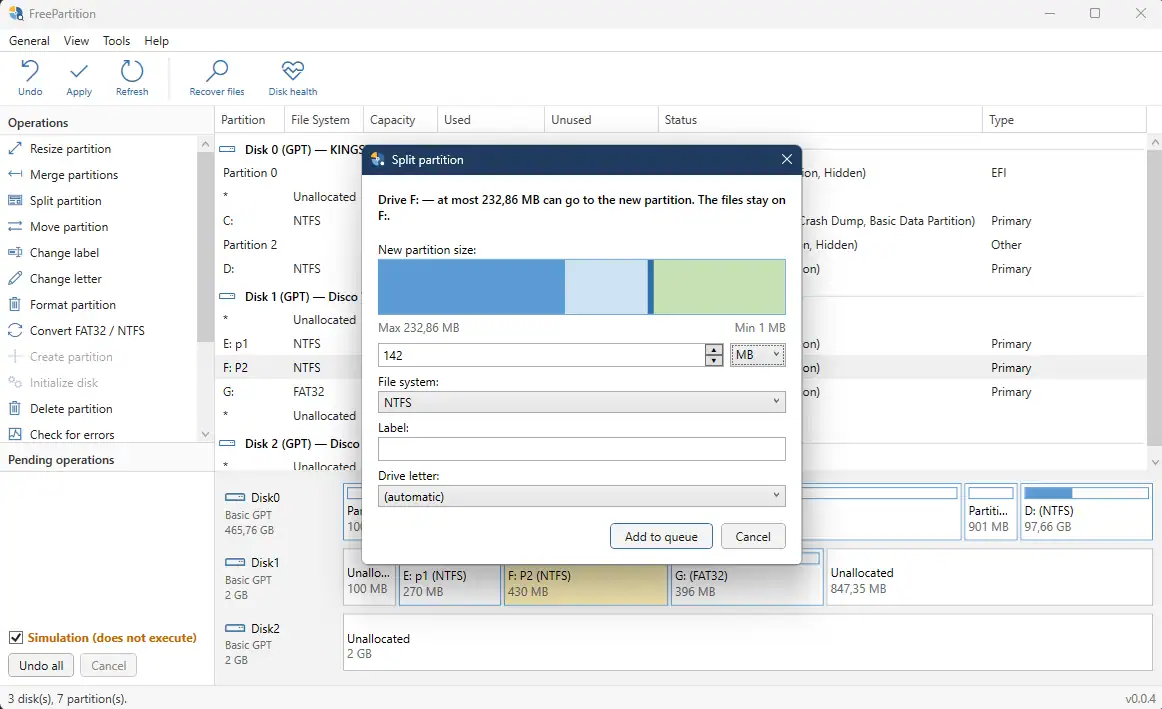
| Split partition | Splits the selected partition in two, using its free space, by dragging the bar. The files stay on the original drive. |
Settings
| Operation | What it does |
|---|---|
| Change label | Changes the volume label (also on a partition without a drive letter). |
| Change letter | Changes the drive letter. |
| Convert FAT32 / NTFS | Converts the selected partition between FAT32 and NTFS, keeping its files. |
| Convert MBR / GPT | Converts the selected disk between MBR and GPT, keeping every partition and its files: only the partition table is rewritten (see below). |
| Set active | Marks the selected MBR partition as active (bootable). |
| Hide partition | Removes the drive letter; the data stays untouched. |
| Show partition | Gives a drive letter to a hidden partition. |
Maintenance
| Operation | What it does |
|---|---|
| Check for errors | Checks the selected volume for file system errors with chkdsk (scan or repair), also on a partition without a drive letter. |
Destructive
| Operation | What it does |
|---|---|
| Format partition | Formats the partition as NTFS, FAT32 or exFAT. Erases all data on it. Also works on a partition without a drive letter. |
| Delete partition | Deletes the partition. Erases all data on it. Also works on a partition without a drive letter. |
| Wipe free space | Overwrites the free space of the selected drive so deleted files cannot be recovered. The files are kept. |
| Wipe partition | Overwrites every sector of the selected partition so nothing on it can be recovered. |
| Wipe disk | Deletes every partition of the selected disk and overwrites all of its sectors. |
Tools
| Tool | What it does |
|---|---|
| Recover deleted files (Tools menu and toolbar) | MFT scan of NTFS volumes: original path, recovery chance (cross-checked against $Bitmap, and marked Overwritten (zeros) when the start, middle and end of the file are all zeros, as after a wipe; those files cannot be checked for recovery) and recovery to another drive. Results are a folder tree with check boxes that recreates the original folders, with filters by name, type, size and modified date, a read-only preview (image, text or hex dump) of the selected file and a Thumbnails… gallery of all the images (click, drag or Shift+click to check them). Also carves files by signature. Shows a TRIM warning when the drive is on an SSD. |
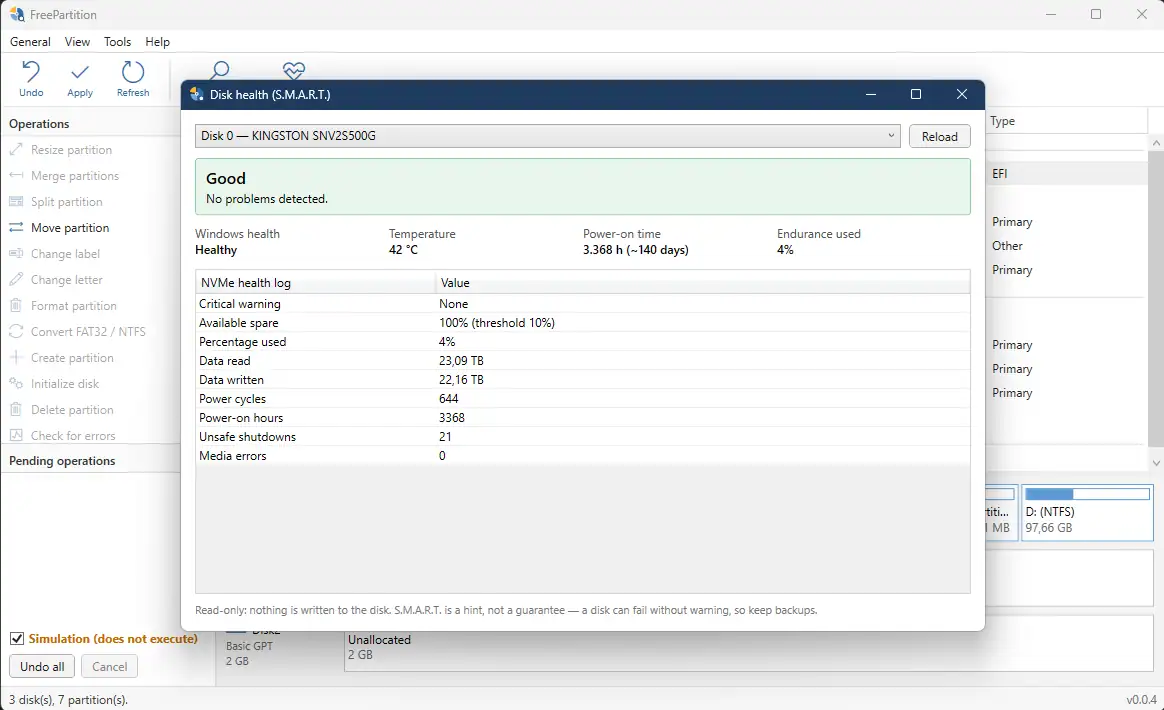
| Disk health (S.M.A.R.T.) (Tools menu and toolbar) | Read-only report per disk: overall level, temperature, power-on time and wear, with the ATA S.M.A.R.T. attribute table or the NVMe health log. |
| Clone Windows to another disk (Tools menu and toolbar) | Copies an installed Windows to another disk so the new disk boots on its own: initializes the destination, creates the boot partition, copies Windows and the recovery partition and writes the boot files. Runs only from the WinPE build (a bootable USB drive), where the source Windows is not in use; in a normal Windows it shows how to download the WinPE ISO from the releases page and make the bootable USB drive (see below). |
Not implemented yet: SSD firmware Secure Erase.
Clone Windows to another disk
First time? Follow the step-by-step guide, written for non-technical users, with the problems you may meet and how to solve them: English · Español · Português (Brasil).
Windows cannot be copied consistently while it is running, so the clone runs only when FreePartition runs from the WinPE build (the app detects it). In a normal Windows the same button opens a window that explains how to get there:
- Download the ready-made WinPE image:
FreePartition-WinPE.iso, attached to the latest release (or build it yourself withbuild-winpe.ps1). - Write it to a USB drive of 4 GB or more (it is erased): with Rufus, partition scheme MBR (target BIOS or UEFI) and file system FAT32; with Ventoy, just copy the ISO to the drive.
- Connect the destination disk, shut Windows down completely and start the PC from the USB drive (boot menu, usually F12, F11, F8 or Esc), in UEFI mode for a UEFI Windows or BIOS mode for a BIOS one.
FreePartition opens by itself. Use Tools → Clone Windows to another disk… or the Clone Windows toolbar button. A single window guides you and shows each step with its status (OK, Skipped or Failed):
| Step | What it does |
|---|---|
| 1. Check the disks | The destination must be a different disk, large enough for the boot partition, Windows and the recovery partition. |
| 2. Erase and initialize | Wipes the destination disk and initializes it as GPT (UEFI source) or MBR (BIOS source). |
| 3. Create the boot partition | EFI system partition plus MSR on GPT; an active System Reserved partition on MBR. |
| 4. Copy the Windows partition | Sector by sector, the same copy as Clone partition. |
| 5. Copy the recovery partition | Creates it, copies its files and points the copied Windows to it (reagentc). Skipped when the source has none; a failure here is only a warning, which tells you to run reagentc /enable in the new Windows if needed. |
| 6. Write the boot files | bcdboot; if it refuses the copy (for example Windows 7 from a recent WinPE), the source’s own boot files are copied and its boot store is repointed to the new disk. |
| 7. Verify the result | Checks that the boot loader and the boot store exist and that the default entry points to the copy. |
- The destination disk is erased; the source is only read. You must tick a confirmation before it starts.
- The copy has the exact size of the Windows partition: for a smaller destination, shrink the Windows partition first.
- Windows must have been shut down completely (Fast Startup leaves a half-saved session;
hiberfil.sysis also removed from the copy). - A GPT source needs the computer in UEFI mode, an MBR source in BIOS (legacy) mode.
- To test the result, disconnect the old disk and start from the new one.
Screenshots
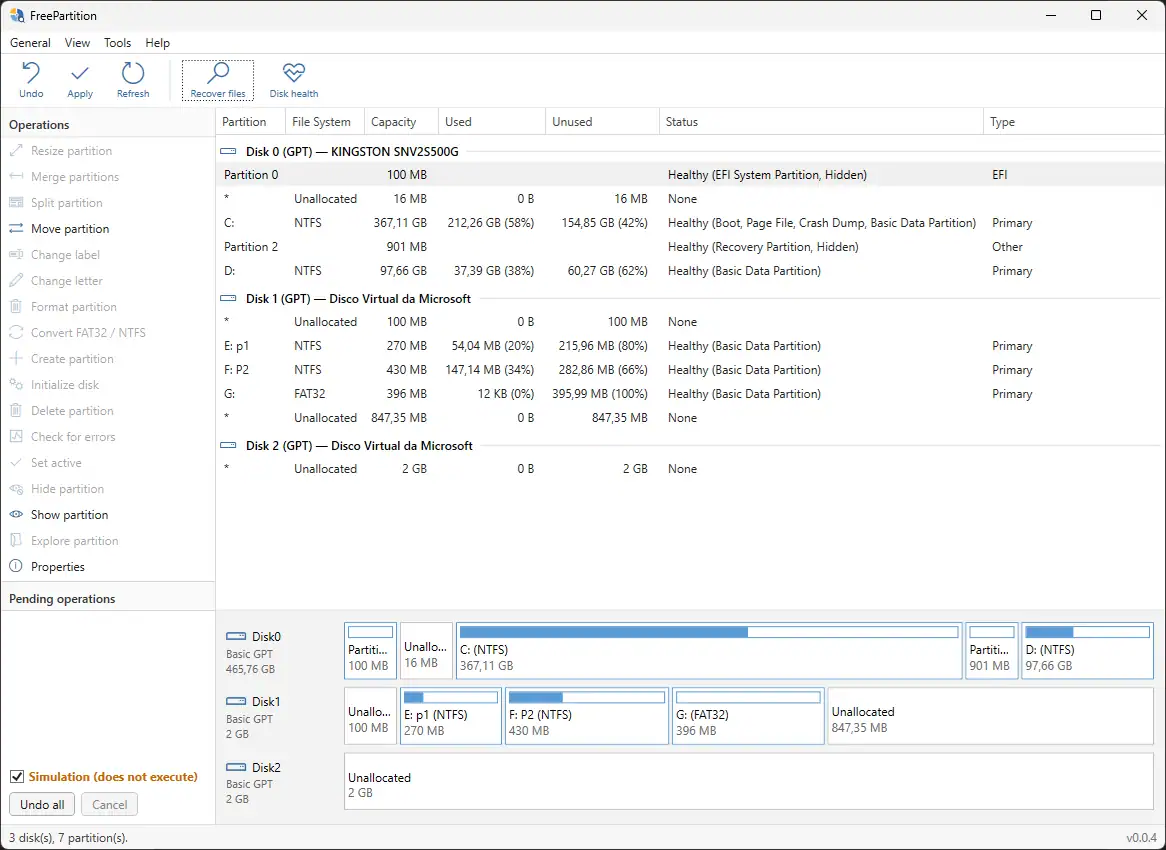
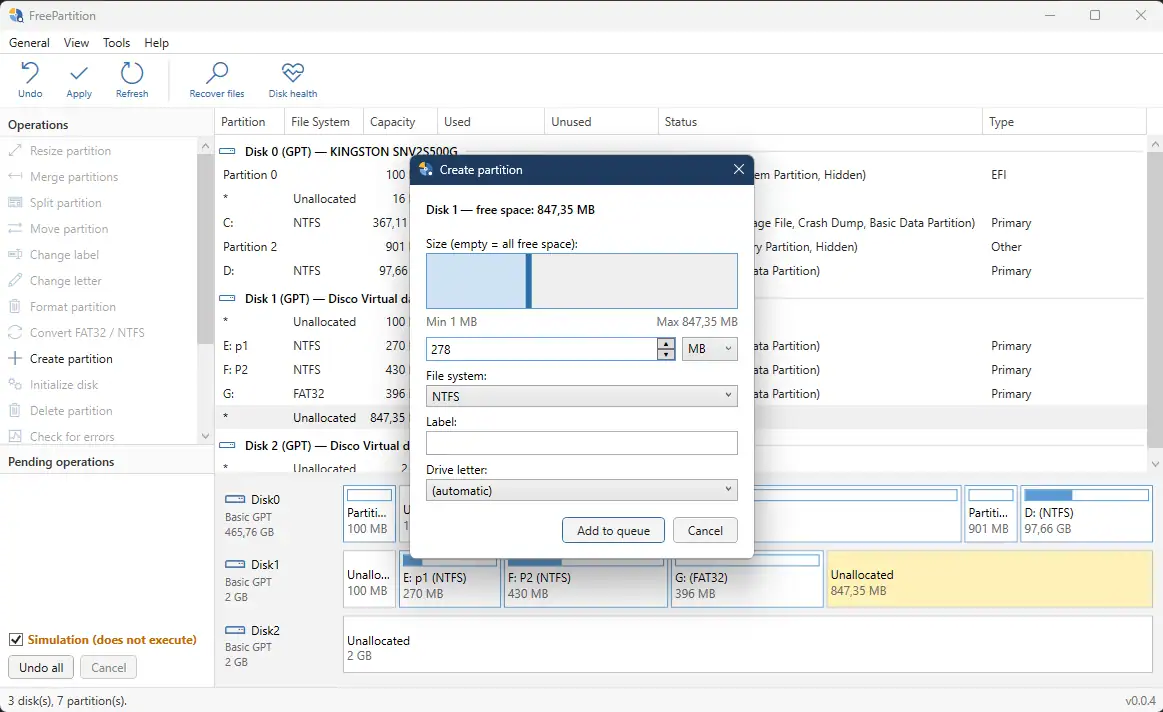 |
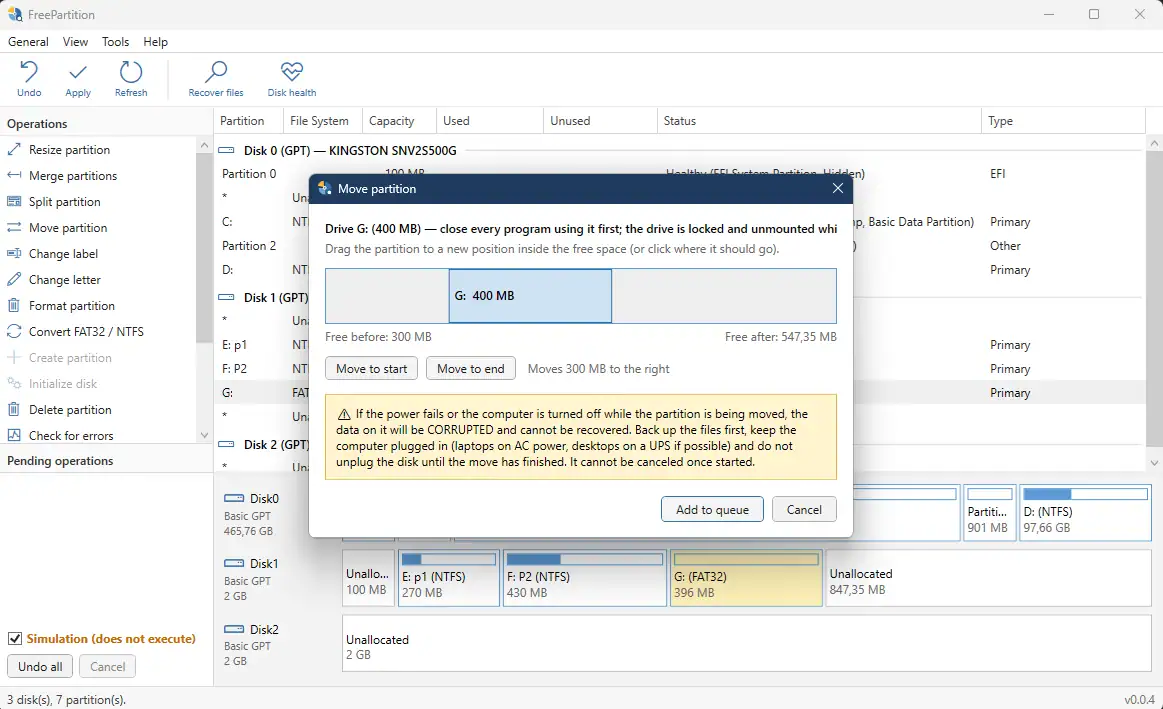 |
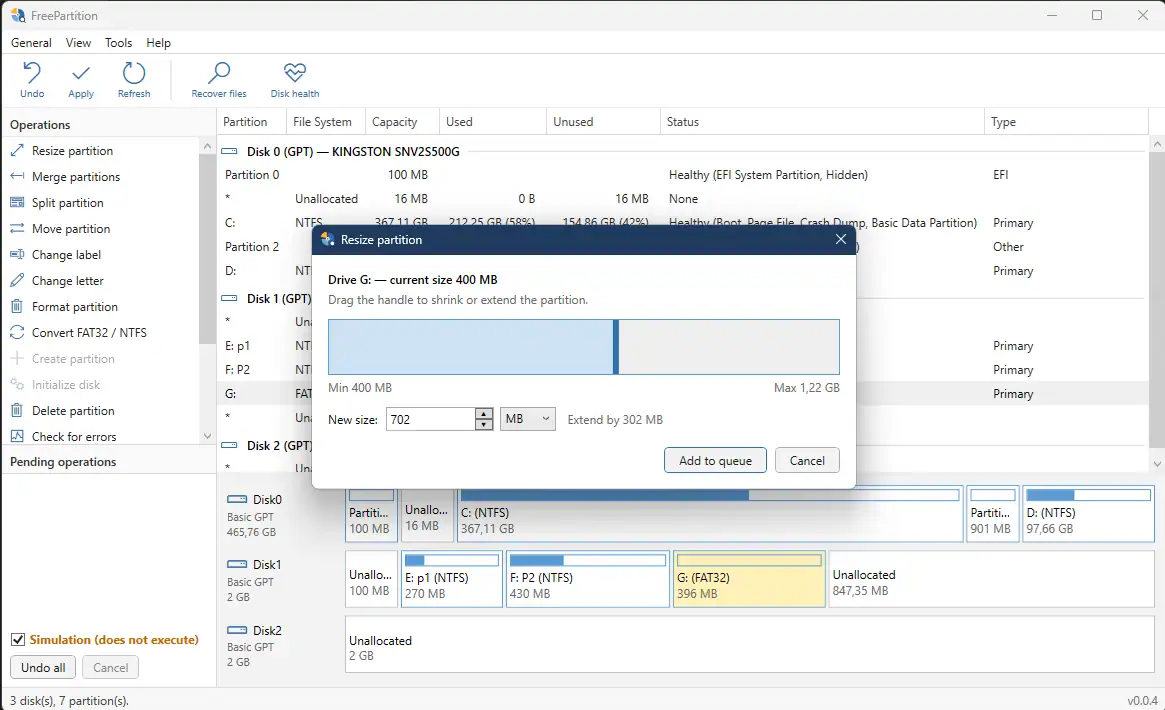 |
 |
 |
 |
How to try it safely (test VHD)
Run in an elevated PowerShell. This creates a throwaway 2 GB NTFS disk you can scan, format and delete files on without risking real data:
$vhd = "$env:USERPROFILE\FreePartition-test.vhdx"
@"
create vdisk file="$vhd" maximum=2048 type=expandable
select vdisk file="$vhd"
attach vdisk
convert gpt
create partition primary
format fs=ntfs label=FreePartition_TEST quick
assign
"@ | diskpart
Copy some files to the new drive, delete them, then scan that volume in FreePartition. When you are done, detach the disk and delete the file:
@"
select vdisk file="$vhd"
detach vdisk
"@ | diskpart
Remove-Item $vhd
This uses
diskpart, which ships with Windows, so nothing extra needs to be installed. You can also create the VHD from Disk Management → Action → Create VHD.
How recovery works
- Reads the boot sector → cluster size and where the MFT starts.
- Reads record 0 (
$MFT) and follows its data runs, so a fragmented MFT works too. - For each record: applies the fixups, reads
$FILE_NAME(name and parent folder) and$DATA. Records without the “in use” flag are deleted files. - Rebuilds the original path from the parent folders (in use or deleted).
- Cross-checks the file’s clusters against
$Bitmap: clusters still free = data probably intact. - Recover = copy the clusters (or the content resident in the MFT) to a file on another disk.
File carving
The Carve files by signature option ignores the file system and walks the whole volume looking for the bytes each format starts with, then works out where each file ends from its own structure. Supported: JPEG, PNG, GIF, BMP, WebP, PSD/PSB, PDF, DOCX/XLSX/PPTX, ZIP, MP4, MOV, M4A, 3GP, HEIC, AVIF, WAV, AVI, 7z, SQLite and EXE/DLL.
It is on by default for FAT/exFAT drives, and the scan switches to it by itself when the NTFS MFT cannot be read.
- Carved files can be previewed like any other, and the Thumbnails… gallery shows all carved images at once (JPEG, PNG, GIF, BMP; images over 16 MB and formats Windows cannot decode show a placeholder).
- A carved or deleted EXE/DLL shows its icon in the gallery and above its hex dump in the preview. Programs without an icon, over 32 MB, or cut by fragmentation show “No icon”. The list itself still uses one generic icon.
- Files come back as
carved_00001.jpg, grouped by type, without names, folders or dates. - A fragmented file is cut at the first gap, so it may be incomplete or damaged.
- Files whose end has to be searched for (JPEG, PNG, GIF, PDF, ZIP) are skipped past 256 MiB; formats that state their own size go up to 16 GiB.
- It reads the entire drive, so it is much slower than the MFT scan (still read-only). Cancel lists what was found so far.
Lost partitions
Recover partitions finds partitions whose entry is gone from the partition table (a deleted partition, a corrupted table, a disk that shows as uninitialized):
- Looks in the unallocated ranges of the disk for the boot sector of an NTFS, FAT32 or exFAT volume, and keeps only partitions that fit entirely in the free space.
- A partition whose backup boot sector (at the end of the volume) also matches is high confidence and checked by default; one with only the first boot sector is low confidence and left unchecked.
- Add to queue queues a Restore partition for each checked result. On Apply it re-checks the boot sector and
that nothing else occupies the range, then writes the table entry directly (
New-Partitionwould zero the start of the partition and destroy the boot sector). The volume is not formatted, so its files come back as they were.
- Quick looks where partitions usually start (start of each free range, every 1 MB, sector 63); Deep reads every sector of the free space, so it takes as long as copying that space.
- On a disk with no partition table, queue Initialize disk first, then the restores.
- Only the partition comes back, not its type or GUID: Windows gives it a new GPT GUID and a basic data type.
Safety
The guarantees the code is built around:
- Volumes are opened read-only for scans and recovery; recovery refuses a destination on the same drive.
- Disk operations never run directly: they go into a queue and only run on Apply, after a confirmation that lists the risk. Simulation mode is on by default and only shows the commands. Undo works only before applying.
- The Windows drive is protected: no format, letter change, move, clone or wipe. Wipe disk and Convert MBR / GPT are also refused on any disk holding Windows or the app itself (checked by the queue, by the script and again right before writing, failing closed if the disk cannot be identified).
- Partitions without a drive letter are addressed by disk number, partition number and offset. The script checks the offset right before acting, so a partition renumbered by an earlier queued step is never touched by mistake, and Format, Delete and Repair refuse one that is boot or system. The app also refuses the ones marked Boot, Active, Page File, Crash Dump, EFI or Reserved.
- PowerShell scripts are generated only from validated values (drive letter, disk and partition numbers, numeric size, file system from a closed list, label with restricted characters) — no command injection.
- The few operations that write below the cmdlet level (Move, Clone, Restore partition, Convert MBR / GPT and the wipes) only run after Apply, check the partition table first and write only where they must: inside the partition’s own locked volume, into free space of the disk, or the partition table sectors. Clone and Restore write the table entry last; Convert saves the old table and puts it back if writing fails.
- Moving a partition (Resize/Move) cannot be canceled once the copy starts, and a power failure corrupts that partition — the app says so before and when applying. On SSDs, wipes cannot reach the drive’s spare cells and the app warns about it.
- The queue stops at the first failure; the remaining operations stay pending.
- Every event is logged to
Log\operations.lognext to the executable (or%LocalAppData%\FreePartition\operations.logif that folder is not writable).
Known limitations
- Names and folders need NTFS. FAT/exFAT only have file carving; reading their directory entries is not implemented.
- Lost partitions are found by their first boot sector only: FAT12/16, ReFS, Linux and other file systems are not found, and logical partitions inside an MBR extended partition come back as primary ones.
- Files with an
$ATTRIBUTE_LISTmay appear incomplete; compressed or encrypted (EFS) files are “Unavailable”; alternate data streams are ignored; parent sequence numbers are not validated, so paths of reused folders may be wrong. - On SSDs with TRIM, deleted data has usually already been discarded by the controller.
- Partitions without a drive letter: their file system, used and free space are read through the volume GUID, which Windows only creates for file systems it knows (NTFS, ReFS, FAT, exFAT). Others (ext4, RAW, a locked BitLocker volume) show as Unknown. Format, Delete, Change label, Check for errors, Recover files, Show partition and Properties work on them; Resize, Merge, Split, Wipe and the rest still need a drive letter, so use Show partition first. Recovery scans them by their volume GUID, so it supports NTFS, FAT32 and exFAT only.
- Move / Align partition: same disk only, MBR (without extended partitions) and GPT, destinations aligned to 4 KB, and the partition needs a drive letter. Align needs up to 1 MB of free space next to the partition. Boot-sector “hidden sectors” are not rewritten, so the app asks for confirmation on Boot, Active, Page File or Crash Dump partitions.
- Convert FAT32 ↔ NTFS: NTFS → FAT32 copies the files to another drive, formats and copies them back (needs free
space there, refuses volumes over 32 GB and files of 4 GB or more; FAT32 loses permissions, compression, encryption,
streams and hard links). If the power fails after the format starts, the files are in
\FreePartition_Convert_<drive>on the staging drive. - Clone partition: NTFS, FAT32 and exFAT only, to disks with the same sector size, into unallocated space at least as large as the partition (resize it afterwards). The copy keeps the volume serial number; on MBR it needs a free primary slot.
- Clone Windows to another disk: WinPE only, and the destination disk is erased entirely (even when much larger than
the source). The Windows partition keeps its size, so a smaller destination needs the source shrunk first. Tested
with a Windows 7 MBR/BIOS disk in VirtualBox and one real UEFI/GPT PC (SATA SSD to NVMe). The recovery partition may
need
reagentc /enablein the new Windows. - Convert MBR / GPT: not the disk Windows boots from (use
mbr2gpt.exe). MBR → GPT needs 34 sectors free at the start and 33 at the end and refuses dynamic disks; GPT → MBR needs at most four partitions, none past 2 TB. Logical partitions become ordinary ones, and drive letters may change (the app tries to restore them). - The thumbnail gallery reads files from the drive one at a time (in order, which is what a spinning disk handles best) and decodes them on several cores. It is not virtualized, so a list of thousands of images still takes a while to fill in.
- The partition “Type” column only shows Primary / EFI / Other, and the UI is code-behind (no MVVM yet).
Build from source
Requires the .NET SDK 10.
git clone https://github.com/rfiori/FreePartition.git
cd FreePartition
dotnet build
dotnet test
dotnet run --project src/FreePartition.Wpf
The app requests elevation (UAC) on startup. If you run it from Visual Studio, open Visual Studio as administrator.
Using a different .NET version
The default target is `net10.0-windows`, set in a single place. Edit `TargetFramework` in [`Directory.Build.props`](/FreePartition/Directory.Build.props), for example to `net8.0-windows`.If your tooling does not support the .slnx solution format
`.slnx` needs Visual Studio 2022 17.13+ or a recent `dotnet`. To generate a classic `.sln`:
```bash
dotnet new sln --format sln -n FreePartition
dotnet sln add src/FreePartition.Core src/FreePartition.Wpf tests/FreePartition.Tests
```
Contributing
Issues and pull requests are welcome.
- Everything in the repository is written in US English: identifiers, comments, UI text, log messages, tests, docs and commit messages.
- Keep the logic in
FreePartition.Coreand testable without a real disk; the UI only calls Core. dotnet buildmust produce no new warnings, anddotnet testmust pass.- Any new binary-format parser needs unit tests with hand-built records, including invalid cases
(see
MftParserTestsfor the pattern). - Never test destructive operations on a real disk — use a VHD or a VM.
- Publishing a release: see docs/RELEASING.md.
License
MIT — see LICENSE.
Privacy policy: English · Español · Português (Brasil). FreePartition collects no data. Its only network call is an optional check for a new version on GitHub (Help > Check for updates on startup).
FreePartition is an independent project and is not affiliated with any company.